Mobile field execution
Everything the job needs, right at the machine.
The MaintenanceIQ mobile app is an installable app for phones and tablets that puts work orders, checklists, asset history and breakdown reporting at the machine. It helps your technicians spend less time on paperwork and walking back to the office, and more time on the tools.
11:00 · Technician · Illustrative
One scan, and the whole job is in your hand.
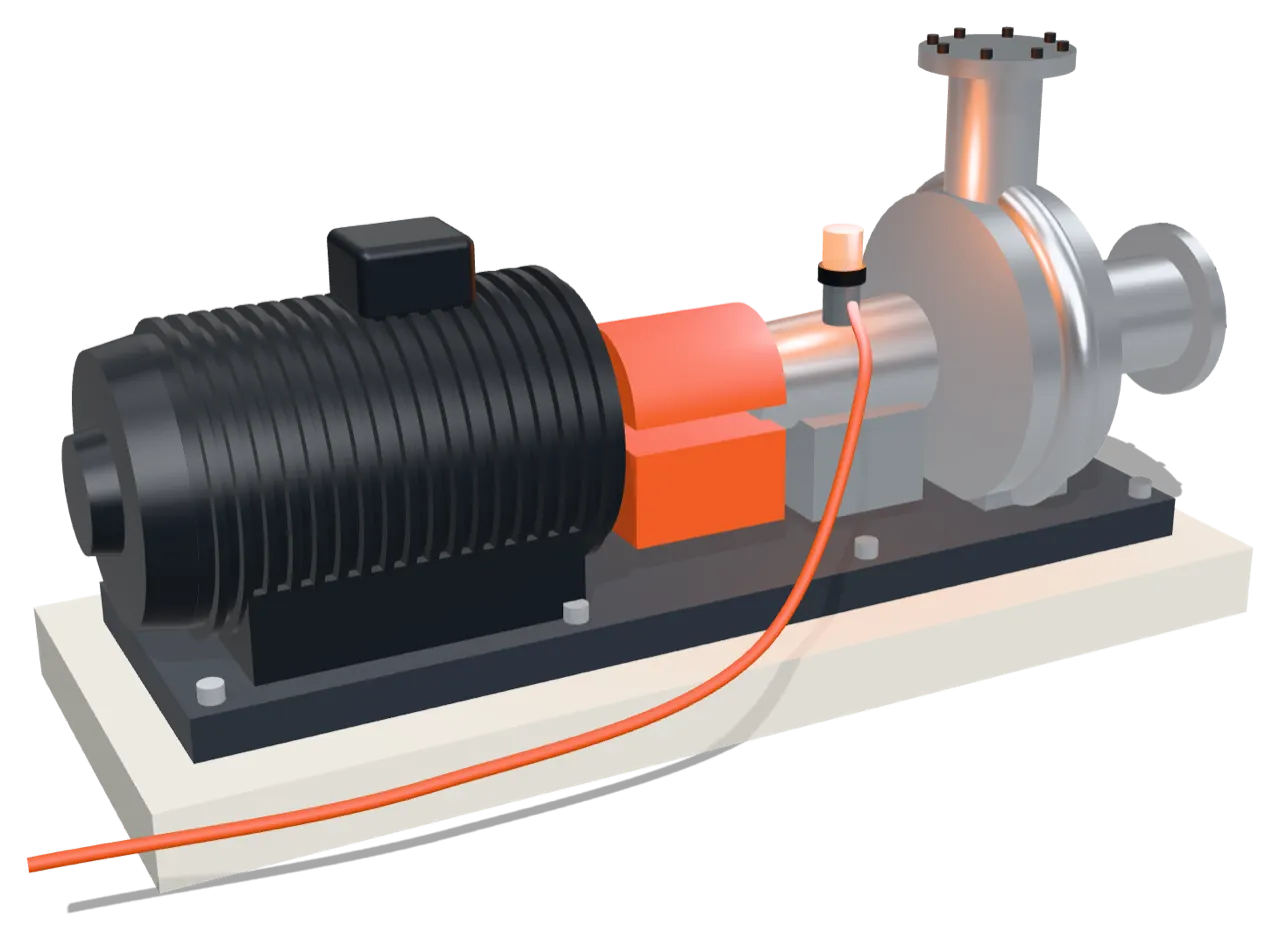
An illustrative late morning. The planner booked the bearing change on pump P-07 after the 09:30 early warning. At 11:00 your technician walks up to the pump and scans the QR tag on its skid. The machine's history, its open work order and the checklist come up on the phone.
They work through the checklist step by step: isolate, record the vibration reading before the change, fit the new bearing, take a photo of the fitted part, record the reading after. They log the bearing they drew from stores, and close the job. The actual time is already filled in from when they started. Nobody writes it up on paper at the end of the shift, and nothing is left in a notebook.
P-07 and the job are illustrative. The scan, checklist and close-out are the real product.
- QR and barcode scan opens the machine
- History, open work and checklist in one place
- Parts used and actual time recorded at close
Installing it
Installs from the browser, no app store needed.
Getting the app onto a technician's phone should not need an IT project. MaintenanceIQ installs from the browser on any modern phone or tablet, with an Install button inside the app. There is nothing to download from an app store. When a new version is released, the app prompts the user to update, so the whole team stays on the same version.
The layout is built for the floor. A bottom bar keeps Home, My Work, Scan, Assets and More within thumb reach. Controls are large enough for gloved hands, tables turn into stacked cards on a small screen, and tabs can be swiped.
The app shell loads even when the signal drops, so the app opens in a dead spot. Saving work needs a network connection, so technicians save once they are back in range.
- Installable mobile app with an in-app Install button
- Update prompt when a new version is released
- Bottom navigation: Home, My Work, Scan, Assets, More
- The app loads when the signal drops; saving work needs a connection
Capture
Proof of the work, captured where the work happens.
A good repair that nobody can show later does not help on audit day. Checklists in MaintenanceIQ are typed: a step can be a checkbox, a number or text, a slider, a range, a photo taken with the camera, or a file upload. The technician records what the step asks for, in the form it asks for it.
Photos and files are stored privately and opened through short-lived signed links. When the run is completed it is frozen, so the record that reaches your quality head is exactly what was recorded at the machine.
- Checkbox, number, text, slider and range steps
- Photo capture with the phone's camera
- File upload on any step that needs it
- Completed runs frozen as recorded
Triage hints
Report a breakdown with your plant's experience behind you.
When a machine stops, the first minutes matter. A technician who reports a breakdown in MaintenanceIQ gets hints for that machine, drawn from your own past repairs: the likely causes, with one tap to fill them in, the parts most often used, and the usual priority. When a machine has little history of its own, the hints widen to similar machines.
These are look-ups from your own records, not a black-box prediction, and every hint can be overridden. The breakdown is stamped with the current time as it is reported. Only managers and admins can set an earlier start time, so downtime figures stay honest.
- Likely causes, parts often used and usual priority
- Drawn from your own repair history
- Every suggestion can be overridden
What changes
Less paperwork, faster fixes, nothing lost.
Technicians on the tools
No walking back to the office to read a job card or type up a repair. The job is opened, worked and closed at the machine.
How: QR scan and mobile work orders
Only their own work
Each technician sees the work for the factories, and if you choose the departments, they are assigned to. My Work is their list and nobody else's.
How: Role, factory and department scoping
Records that hold up
Readings, photos and parts are captured when the work is done, not reconstructed later from memory.
How: Typed checklists, frozen on completion
Frequently asked questions
Do technicians need to download anything from an app store?
No. The app installs from the browser on any modern phone or tablet, using the Install button inside MaintenanceIQ. It prompts users to update when a new version is released.
Does the app work without a signal?
The app shell loads when the signal drops, so it opens in a dead spot. Saving work, such as completing a checklist or closing a work order, needs a network connection.
Can technicians attach photos and files?
Yes. Checklist steps can ask for a photo taken with the camera or a file upload. Files are stored privately and opened through short-lived signed links.
Where do the breakdown hints come from?
From your own repair history for that machine, widening to similar machines when the history is thin. They suggest likely causes, parts often used and the usual priority, and every hint can be overridden.